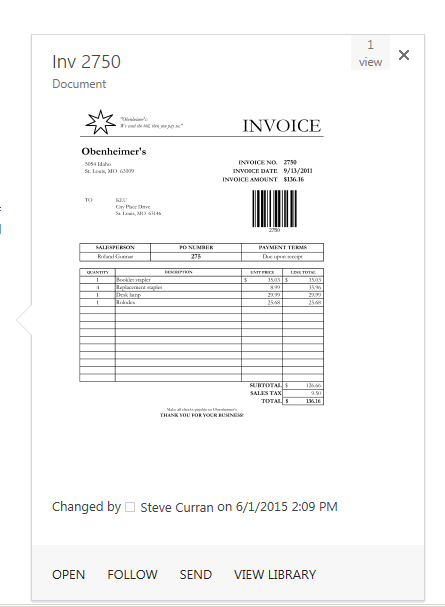
Delve was recently released in Office 365 and the experience is bit different than what you may be used to when using SharePoint Online search. The Delve experience can be useful when looking for relevant documents that your colleagues are working on. One of the great features of Delve is the display template it uses to display results. It uses cards showing an image preview with the file icon and the file name. You can add the card to a board, send a link, and view who the document is shared with. The card is somewhat similar to the callout image preview that you would get on certain content types when using SharePoint Online search. The callout image preview in search uses an IFrame and the Office Web Apps server to display office documents and PDF files. The callout is more than a preview and gives you the ability to page through the whole document, print, or even download the document. On the other hand Delve uses a new file handler called getPreview.ashx and only renders a first page image preview without all the extra functionality. This is needed since the preview is displayed inline within the results. Another added benefit of the handler is that it can render image previews for other file formats such as TIF, BMP, PNG and JPG files. In this post I will show you how to incorporate this new file handler into a search display template. The example uses the file handler to display an image within the search callout. However, it is fast and responsive enough to use within the body of your display template if you wish. You can download the template here.

Which Managed Properties to Use?

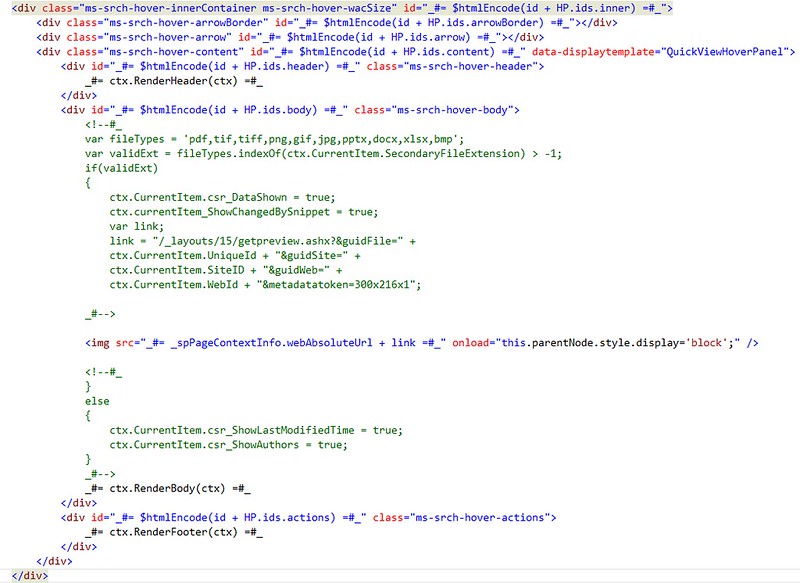
I downloaded the Item_PDF.html and Item_Hover_PDF.html and renamed them to Item_QuickView.html and Item_QuickView_HoverPanel.html. I then added the UniqueId, SiteID, WebID, SecondaryFileExtension managed properties to each display template. I use the SecondaryFileExtension managed property rather than FileExtension because FileExtension returns DispForm.aspx for documents that are not included in the file types for search to crawl. File types like TIF, BMP, PNG and JPG are not crawled and you have no way to add them in SharePoint Online. The JavaScript in the Item_QuickView_HoverPanel.html uses the SecondaryFileExtension to compare against a valid list of file extensions that the preview handler can process. If it is a valid extension then the code builds a URL to the getPreview.ashx preview handler and sets the Img element’s src attribute to this. That simple.


Fast Viewing of Images

The handler returns images faster than the Office Web Apps server previewer and supports more types of images. The handler does not need an IFrame making it much more lightweight and suitable for using within the body of your search results much like Delve. I tried changing the metadatatoken query string value to see if I could adjust the size returned but it had no effect.


The Benefits of Delve

The new preview handler is a new feature provided by Delve. You can take advantage of it in your search display templates. You can also just use Delve display template if you want. An a great example of this is provided by Mikael Svenson where he created a Delve clone for the Content Search Web Part.
In fact, lots of people said it, because it's true. Later, some folks disagreed, saying that this is an inaccurate analogy. Of course, it is inaccurate because it's an analogy. That said, as analogies go, it's pretty good. Sure, assemblers are architecture and processor specific. Maybe "JavaScript is the Web's Bytecode" is better. At the very least, JavaScript is a totally reasonable compile target.

Given that (using Wikipedia as a dictionary here and has a decent definition:
An assembly language is a low-level programming language for a computer, or other programmable device, in which there is a very strong correspondence between the language and the architecture's machine code instructions.

It's initially not clear that JavaScript is a good assembly language as it's a high-level programming language that is itself interpreted, then JIT-ted, then turned into machine instructions. Phrased differently, JavaScript floats pretty high in the stack. Certainly every processor has its own assembler and they are very specific, but the browser's JavaScript VM is what runs the "new machine code." There's only one processor architecture. The Web. (again, analogy!)

JavaScript remains a popular transpilation/compilation target. From Google's GWT to Clojure to TypeScript to CoffeeScript, it all stops at JavaScript because JavaScript is the ubiquitous virtual machine that we already have installed on our machines.

Google Native Client (NaCl) is great and will likely have a role to play, but there's only one language that works everywhere without installation or trouble and that's JavaScript.
asm.js compilation & execution pipelineWe don't all have x86 machines. We don't have have machines that we could feed assembler or C. Certainly not in a portable way. JavaScript is the great portable equalizer.

There's languages that transform to JavaScript like TypeScript and CoffeeScript and HAXE and so many more, but many of these are arguably transformations, not compilations. They also tend to compile to lots of different kinds of JavaScript.

Enter asm.js. Why not take the sprawling language that is JavaScript and pick just the subset that one would want if one were to compile something to it? Why not take the assembly-esque parts of JavaScript and formalize it? Mozilla is doing this with the clear goal to compile things to JavaScript and make it perform well. Their FAQ says they're seeing slowdowns around a factor of two, which is amazing, in case you're wondering. It's also worth noting that I, as a user, don't care if you compile your C to JavaScript. I just want a great experience on the open web, and that's another reason that targeting JavaScript moves the web forward.

Working in tandem, there's emscripten, a LLVM bitcode to JavaScript compiler. We can take C/C++ and compile it to JavaScript. Don't buy it? They ported Unreal Engine 3 in 4 days with asm.js as the target.

You can argue that JavaScript isn't the x86 or Assembly of the web. You can argue all you want. It's still happening.


Conclusion:
It's not clear that JavaScript is the end state. In fact, if anything it's clear there is no end state. But along the way we will - actually are - passing though the JavaScript as Assembler part of the trip.
A mystery question to many and a hard one to answer, "How much does SharePoint cost?"
Trust me you’re asking a very good question. The short answer is that it varies. It’s must like asking how much does a car cost? There are just too many flavors and ‘ways’ to get SharePoint but hopefully I will be able to shed some good insight into it and give you guidance as well help you make a good decision when getting the ‘right SharePoint for you’.

SharePoint Background in understanding its cost.

SharePoint was first release in 2001 and its evolution since has been profound, to put it lightly. Much has changed and the cloud has now taken a big part in it as well. 2001 was a single server free product, then came 2003 and 2007 which were ‘farm’ productions. Farm refers to a bunch of servers working together to serve a function such as delivering a SharePoint service. The larger the farm (the number of servers) the higher the cost. Then comes the question how many servers do you need in a farm? Then came the hosted farms that are managed by 3rd party hosting vendors. And more recently even came SharePoint Online and Office 365 with per user monthly licensing. To add to the confusion of options, even in O365 the prices are different.
Let’s now break the Craziness down.. Here are your options.

Option 1: In-house / On-premises SharePoint
In-house and on-premises meant he same thing. This means that you have a data center somewhere in your office building, or a managed data center, or even under your desk if you wish (not recommended) where you buy a server(s) , install and configure SharePoint on it and you’re good to go. The costs here are as follows.
Note: CAL = Client Access License = A user is a client, so effectively each user represents 1 CAL.
ItemPrice
SharePoint Foundation LicenseFree
SharePoint Server LicenseAbout $5K per server / virtual machine
Enterprise CAL LicensesAbout $90 One Time per license
Standard CAL LicenseAbout $180 per license
This is your menu to choose from. From this menu you can derive the actual cost.
If you choose SharePoint Foundation then you’re done. You pay $0 for the server license and $0 for an infinite number of users.
If you Choose SharePoint Server then you have to ask how many servers do you need in your farm. One server is the least you can choose, but if you want to scale better and get better performance (maybe for production environments) then you’ll need more than one.
If you need 4 servers then the total will be:
4 * $5,000 = $20,000.00
Atop of this cost is the cost of the user licenses. If you have 100 Enterprise users (meaning 100 users accessing the SharePoint Enterprise Edition), then the total for those CALs is:
100 * $180 = 18,000.00
Your total is:
ItemCost
SharePoint Farm$20,000.00
100 Enterprise Users$18,000.00
Total$38,000.00
Of course those are just SharePoint licensing fees and don’t account for operational costs, hardware costs, setup costs, disaster recovery costs etc..
Any future upgrades to the newer versions of SharePoint will require new CALs and server licenses all over again.

Option 2: SharePoint Online / Office 365

This option is Microsoft’s offering of SharePoint and is a shared environment. The prices here are per user. No SharePoint Foundation Edition is offered here.
The pricing is straight forward
PlanCost
SharePoint Online Plan 1$5/user/month
SharePoint Online Plan 2$8/user/month

Hidden Costs

SharePoint licenses may have a predictable cost. Sometimes that is not enough in making a smart IT / CIO level decision as you need to see all associated costs for a project. SharePoint is a powerful tool that has evolved into a distributed, multi-server, multi-services ecosystem. That means it needs robust management and diligent care. Here are some additional costs to consider to smoothly run SharePoint.
ItemCost
IT SharePoint Administrator$70,000   -  $120,000 / year
Hardware$20,000   -  $100,000
Disaster Recovery / Offsite Backup$5,000 / year
3rd party Add-ons$0  – $50,000
SQL Licenses$5,000 – $50,000
Management Tools$5,000
Training$5,000
Development$5,000 – $100,000


So What Should you Choose?

It depends.First, if cost is a big factor, you most likely will have to go with a Shared Hosting Option (either vendor-hosted or SharePoint online). Shared will give you leverage from other user’s on the system as you all collectively pay the cost of operations and licensing.

Conclusion

SharePoint can be very affordable or pricy. Consider your options and the trade offs and research other areas as well. Check with licensing vendors for pricing as they may be different depending your agreements with Microsoft. If you have an Enterprise Agreement, it may provide you with a different price. Consult and talk with your vendors to find the best value and of course, shop around.
What is great about SharePoint hosted Add-ins (Apps) is that you can come up with some very interesting ideas on how to make people’s life so much more productive. SharePoint has the ability to define s site policy for closing and deleting sites over a period of time. This is great when you are trying to manage many sites and sub sites that tend to proliferate over time. There has been a lot written about how this works and the benefits "Overview of Site Policies". In this post I am going to give you some ideas on how you could create a SharePoint hosted Add-in that could help make it easier to view how your policies have been applied. I will also give you an overview on what is available for site policy management with JavaScript.

Site Policy and JavaScript

There is some documentation on the .Net managed remote API for managing site policies but of course there is none for JavaScript. You can use the Microsoft.Office.RecordsManagement.InformationPolicy.ProjectPolicy namespace for the .Net managed remote API but you must load theSP.Policy.js file and use the SP.InformationPolicy.ProjectPolicy namespace in JavaScript. Apparently, applying site policies to a web is considered a project. All methods except SavePolicy are static methods. Also, every methods except SavePolicy takes a target SP.Web and the current context as arguments. Unfortunately, none of the methods are callable via the REST interface because the SP.Web is not included in the entity model. Still waiting on this. The following methods are available for managing site policies:
ApplyProjectPolicy: Apply a policy to a target web. This will replace the existing one.
CloseProject: This will close a site. When a site is closed, it is trimmed from places that aggregate open sites to site members such as Outlook, OWA, and Project Server. Members can still access and modify site content until it is automatically or manually deleted.
DoesProjectHavePolicy: This will return true if the target web argument has a policy applied to it.
GetCurrentlyAppliedProjectPolicyOnWeb: Returns the policy currently applied to the target web argument.
GetProjectCloseDate: Returns the date when the target web was closed or will be closed. Returns (System.DateTime.MinValue) if null.
GetProjectExpirationDate: Returns the date when the target web was deleted or will be deleted. Returns (System.DateTime.MinValue) if null.
GetProjectPolicies: Returns the available policies that you can apply to a target web.
IsProjectClosed: Returns true if the target web argument is closed.
OpenProject; Basically the opposite of the CloseProject method.
PostPoneProject: Postpones the closing of the target web if it is not all ready closed.
SavePolicy: Saves the current policy.
When working with policies you have the Name, Description, EmailBody, EmailBodyWithTeamMailBox, and EmailSubject. You can only edit EmailBody, EmailBodyWithTeamMailBox and EmailSubject, and then call SavePolicy. There are no remote methods to create a new ProjectPolicy.

Applying a Site Policy with JavaScript Example

Below is an example of using the JavaScript Object Model to apply a site policy to a SP.Web. The code example is run from a SharePoint hosted Add-in and applies an available site policy to the host web. Of course your Add-in will need full control on the current site collection to do this.
1
2
3
4
5
6
7
8
9
10
11
12
13
14
15
16
17
18
19
20
21
22
23
24
25
26
27
28
function applyProjectPolicy() {
    appweburl = decodeURIComponent(getQueryStringParameter('SPAppWebUrl'));
    hostweburl = decodeURIComponent(getQueryStringParameter('SPHostUrl'));
    context = SP.ClientContext.get_current();
    appContextSite = new SP.AppContextSite(context, hostweburl);
    targetWeb = appContextSite.get_web();
    policies = SP.InformationPolicy.ProjectPolicy.getProjectPolicies(context, targetWeb);
    context.load(policies);
    context.executeQueryAsync(function () {
        policyEnumerator = policies.getEnumerator();
        while (policyEnumerator.moveNext()) {
            p = policyEnumerator.get_current();
            if (p.get_name() == "test my policy") {
                SP.InformationPolicy.ProjectPolicy.applyProjectPolicy(context, targetWeb, p);
                context.executeQueryAsync(function () {
                    alert('applied');
                }, function (sender,args) {
                    alert(args.get_message() + '\n' + args.get_stackTrace());
                });
            }
        }
    }, function (sender, args) {
        alert(args.get_message() + '\n' + args.get_stackTrace());
    });
}

Getting a Better View of Your Policies

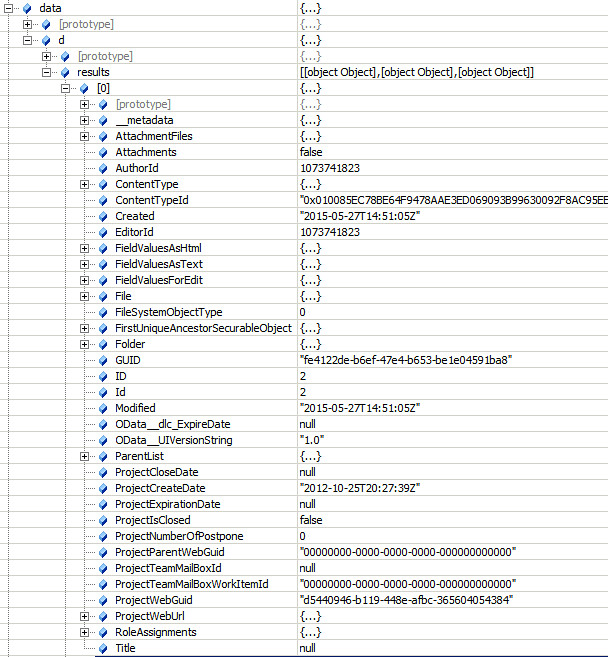
When applying a site policy to a target SP.Web all the information is stored in a hidden site collection list with the title of “Project Policy Items List”. Typically you would have to go to each site and click on “Site Settings” and click on “Site Closure and Deletion” to see what policy is applied. This informational page will show you when the site is due to close and/or be deleted. You can also immediately close it or postpone the deletion from this page. Instead of navigating to all these sites to view this information you could navigate the “Project Policy Items List” directly using he URL http://rootsite/ProjectPolicyItemList/AllItems.aspx. The AllItems view can be modified to display all the sites that have policies applied along with the expiration dates and even the number of times the deletion has been postponed.


Of course you probably don’t want to expose this list anywhere in the site collection navigation. You also want to be careful not to modify any of this information since it is used to control the workflows that close and delete sites. Your best bet here is to write a SharePoint Add-in to surface this data where it cannot be inadvertently modified. You can make a rest call to get these items and then load the data into the grid of your choice.

1
2
3
4
5
6
7
8
9
10
11
12
13
14
15
16
17
18
19
20
function getProjectPolicyItems() {
    appweburl = decodeURIComponent(getQueryStringParameter('SPAppWebUrl'));
    hostweburl = decodeURIComponent(getQueryStringParameter('SPHostUrl'));
    sourceUrl = appweburl + "/_api/SP.AppContextSite(@target)/web/lists/getbytitle('Project Policy Item List')/items?@target='" + hostweburl + "'";
    $.ajax({
        'url': sourceUrl,
        'method': 'GET',
        'headers': {
            'accept': 'application/json;odata=verbose'
        },
        success: function (data) {
            d = data;
        },
        error: function (err) {
            alert(JSON.stringify(err));
        }
    });
}

Creating Value with JavaScript

It is easy to create a SharePoint Add-in to put this data into a custom grid and then have actions to call the SharePoint JSOM to change policies on sites, re-open closed sites, postpone deletion or change the email that is sent out. You could select multiple sites and apply the action once. There are many possibilities to increase productivity. The one thing that is missing from the SharePoint Remote API is having the ability to view site policies settings. These settings are important when you want information about a policy that is applied to the site. You may want to know what type of site policy it is, for example, is it a close and delete policy or just a close policy? Can users postpone the deletion? Is email notification enabled and how often will it be sent? This would be information an administrator would want to quickly view from a SharePoint Add-in. Unfortunately, this information is stored in a property of the ContentType called XmlDocuments which is not available in the SharePoint Remote API. Every time you create a new site policy it creates a new ContentType in the root web of the site collection. All the site policy settings are stored as an xml document in the XmlDocuments property. It would be nice to have this information and especially if could be returned as JSON.
The JSOM and REST SharePoint Remote API still has many sections that are not documented. This is a shame because more and more developers are turning to creating client side Add-ins for their simplicity in deployment and configuration. I hope this post helped you understand what is available in the client side SharePoint Remote API for site policy management. Many times just because it is not listed in MSDN does not mean it is not available. Keep digging!